Cleaning Schedule
Cleaning Schedule
The Cleaning Schedule provides a comprehensive view of all scheduled cleaning jobs across your properties. This powerful tool helps you track, filter, and manage cleaning operations efficiently.
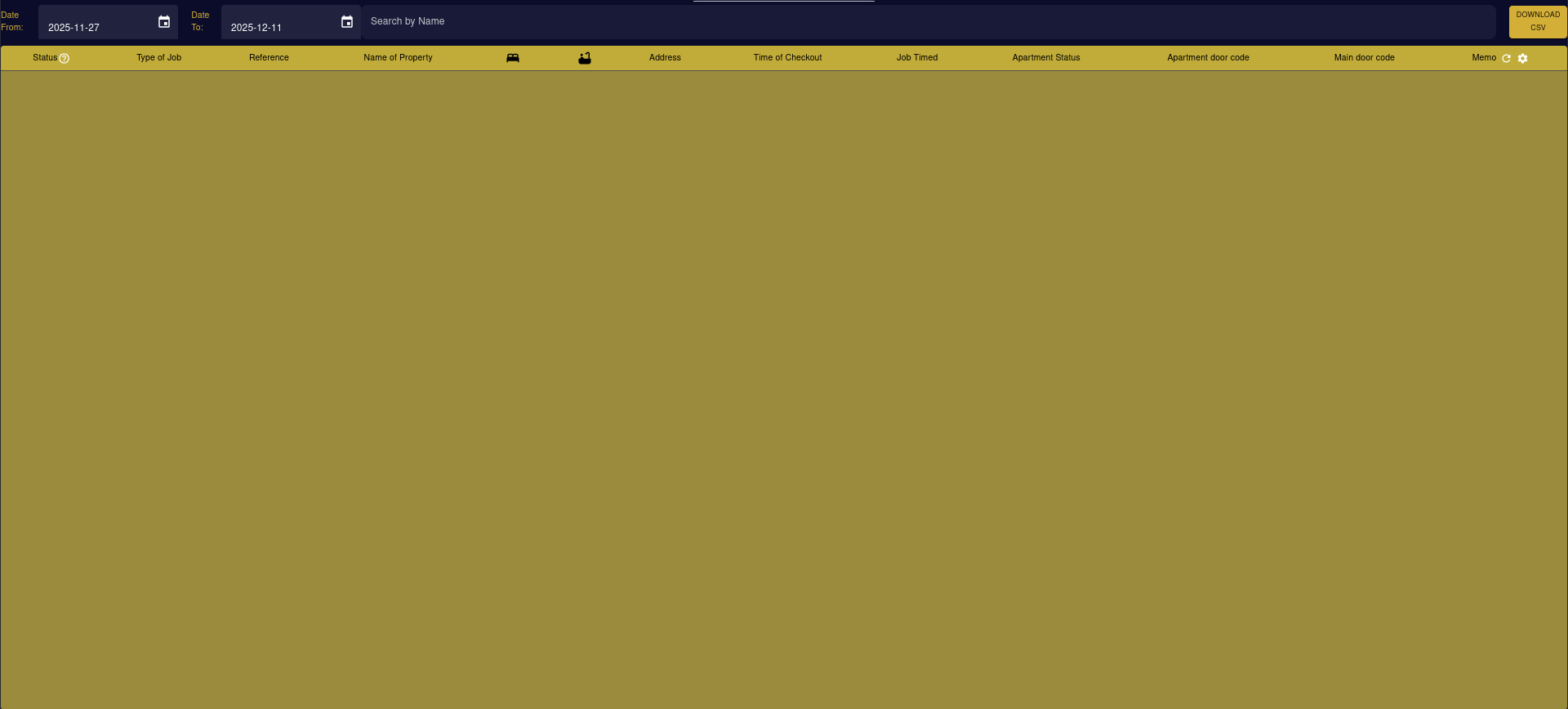
Overview
The Cleaning Schedule dashboard displays all cleaning jobs in a filterable table format. You can view job details, property information, checkout times, apartment status, door codes, and other relevant information needed for cleaning operations.
Date Range Filtering
At the top of the schedule, you’ll find date range filters to narrow down the displayed jobs:
Date From: Select the start date for your search range
- Uses a date picker interface
- Default shows format like “2025-11-27”
- Click the calendar icon to select a date
Date To: Select the end date for your search range
- Uses a date picker interface
- Default shows format like “2025-12-11”
- Allows you to view jobs for any time period
These filters help you focus on specific timeframes, whether planning for the week ahead or reviewing past jobs.
Search Functionality
Located at the top of the page, the search bar allows you to quickly find specific records by:
- Name
- ID
- Other visible fields
Simply type in the search field and the results will filter automatically in real-time.
Table Columns
The cleaning schedule table includes the following columns:
Status
- Shows the current status of each cleaning job
- Indicated by an info icon (ℹ️)
- Click to view or update job status
Type of Job
- Displays the category or type of cleaning required
- Examples: Regular cleaning, deep cleaning, checkout cleaning, etc.
Reference
- Unique reference number for the cleaning job
- Used for tracking and identification
Name of Property
- The property name where cleaning is scheduled
- Links to property details
Vehicle Icons
- Car icon (🚗): Indicates parking availability or requirements
- Shopping bag icon (🛍️): May indicate supplies or special requirements
Address
- Full address of the property
- Helps cleaners locate the property
Time of Checkout
- The checkout time for the property
- Important for scheduling cleaning start times
- Ensures cleaning doesn’t conflict with guest departures
Job Timed
- Scheduled time for the cleaning job
- Helps coordinate cleaner schedules
Apartment Status
- Current status of the apartment
- Examples: Vacant, Occupied, Ready for cleaning, etc.
Apartment Door Code
- Access code for the apartment entrance
- Essential for cleaner entry
Main Door Code
- Access code for the main building entrance
- Required for building access
Memo
- Additional notes or special instructions
- May include:
- Special cleaning requirements
- Items to check
- Guest requests
- Damage reports
- Click the settings icon (⚙️) to view or edit memo details
Sortable Columns
Click on column headers to sort the table by that field:
- Sort alphabetically by text fields (Name, Email, etc.)
- Sort numerically by ID or number fields
- Sort chronologically by date/time fields
Click the same header again to reverse the sort order (ascending/descending).
Pagination
At the bottom of the table, you'll find pagination controls:
- Rows per page - Set how many records to display (default: 30)
- Page indicators - Shows current page out of total (e.g., "1-1 of 1")
- Navigation arrows - Move between pages when you have multiple pages of records
You can adjust the number of rows displayed per page using the dropdown menu.
Common Tasks
Downloading the Schedule
Use the “DOWNLOAD CSV” button in the top-right corner to:
- Export the current view to a CSV file
- Share schedules with cleaning teams
- Import into other systems
- Keep offline records
Viewing Job Details
Click on any row in the table to view complete job details, including:
- Full property information
- Detailed cleaning requirements
- Status history
- Photos or attachments
Filtering by Date
To view jobs for a specific period:
- Click the “Date From” field
- Select your start date from the calendar
- Click the “Date To” field
- Select your end date
- The table automatically updates to show only jobs within that range
Best Practices
- Plan Ahead: Use date filters to view upcoming jobs and ensure adequate staffing
- Check Door Codes: Always verify door codes before dispatching cleaners
- Review Memos: Check memo fields for special instructions or requirements
- Export Regularly: Download schedules for backup and offline access
- Monitor Status: Keep job statuses updated for accurate tracking
- Coordinate Times: Use checkout and job times to optimize cleaner routes
Tips
- The search bar can quickly find specific properties or addresses
- Door codes are displayed directly in the table for easy access
- Use the memo field to communicate important information to cleaning staff
- Filter by specific date ranges to focus on daily, weekly, or monthly schedules
- Export data to analyze cleaning patterns and optimize operations